
Site sharing
Share a temporary preview or publish a custom hostname safely.
Share your running Laravel website with a teammate or tester using Cloudflare Tunnel. SpaceYard creates a public HTTPS address that forwards requests to your local site, without opening an inbound port on your router.
Important: A shared preview is reachable from the internet. Only share a development project with safe sample data. Keep authentication enabled, avoid debug pages that reveal secrets, and stop sharing as soon as you finish.
Before you start
- Open Sites and start the Laravel project you want to share.
- Confirm that the project opens locally. Fix any local errors before sharing.
- Open the project's Manage view, then choose Share site.
- If prompted, install the verified Cloudflare Tunnel (cloudflared) tool using SpaceYard's installation action.
You do not need a Cloudflare account for a temporary link. A custom hostname needs access to a domain in your Cloudflare account.
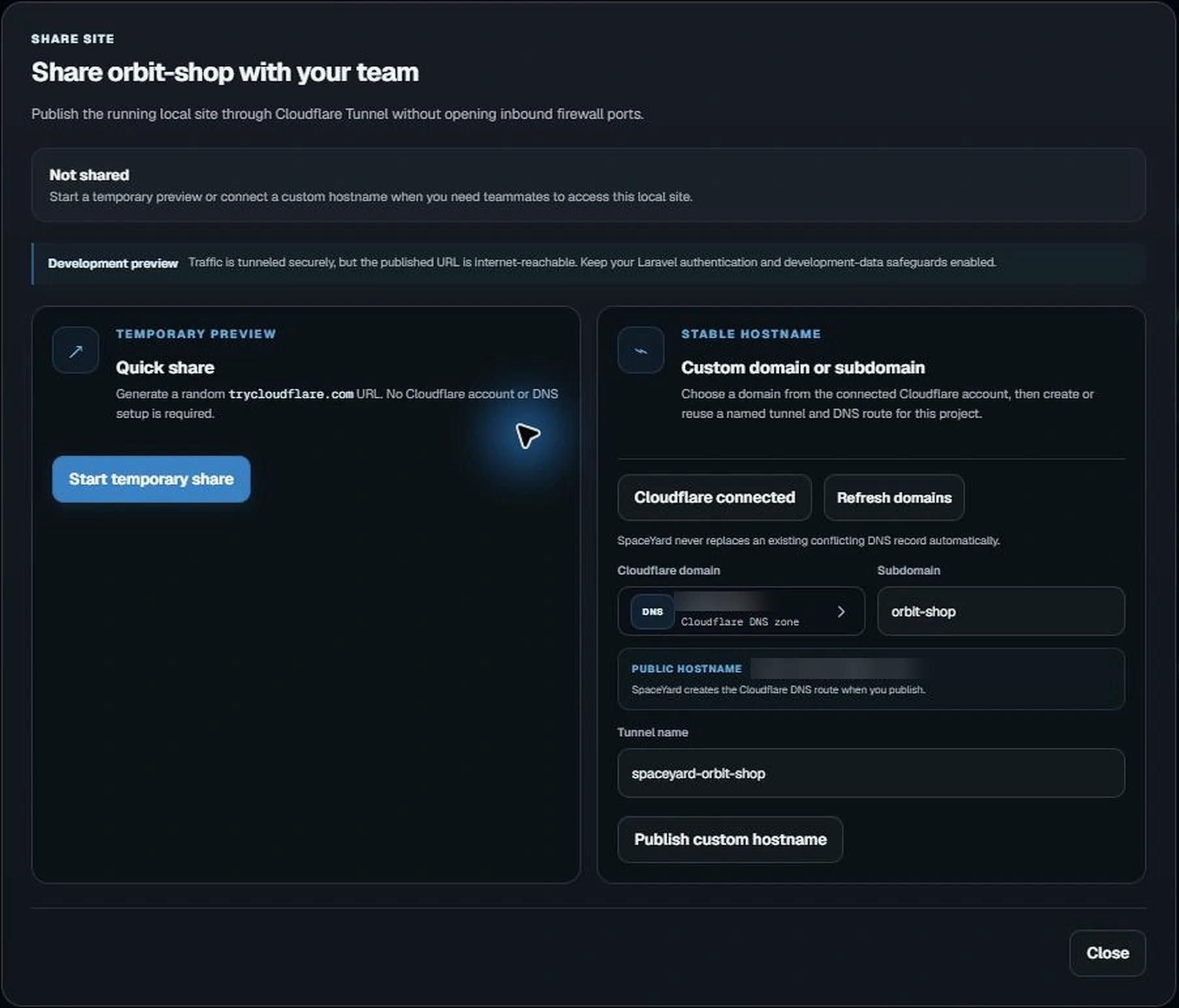
Option 1: Quick share (temporary link)
Use this for a short demonstration or review.
- In Share site, find Quick share under Temporary preview.
- Select Start temporary share.
- Wait while SpaceYard prepares the local preview and connects the tunnel. For projects with frontend assets, preparation may include a fresh asset build.
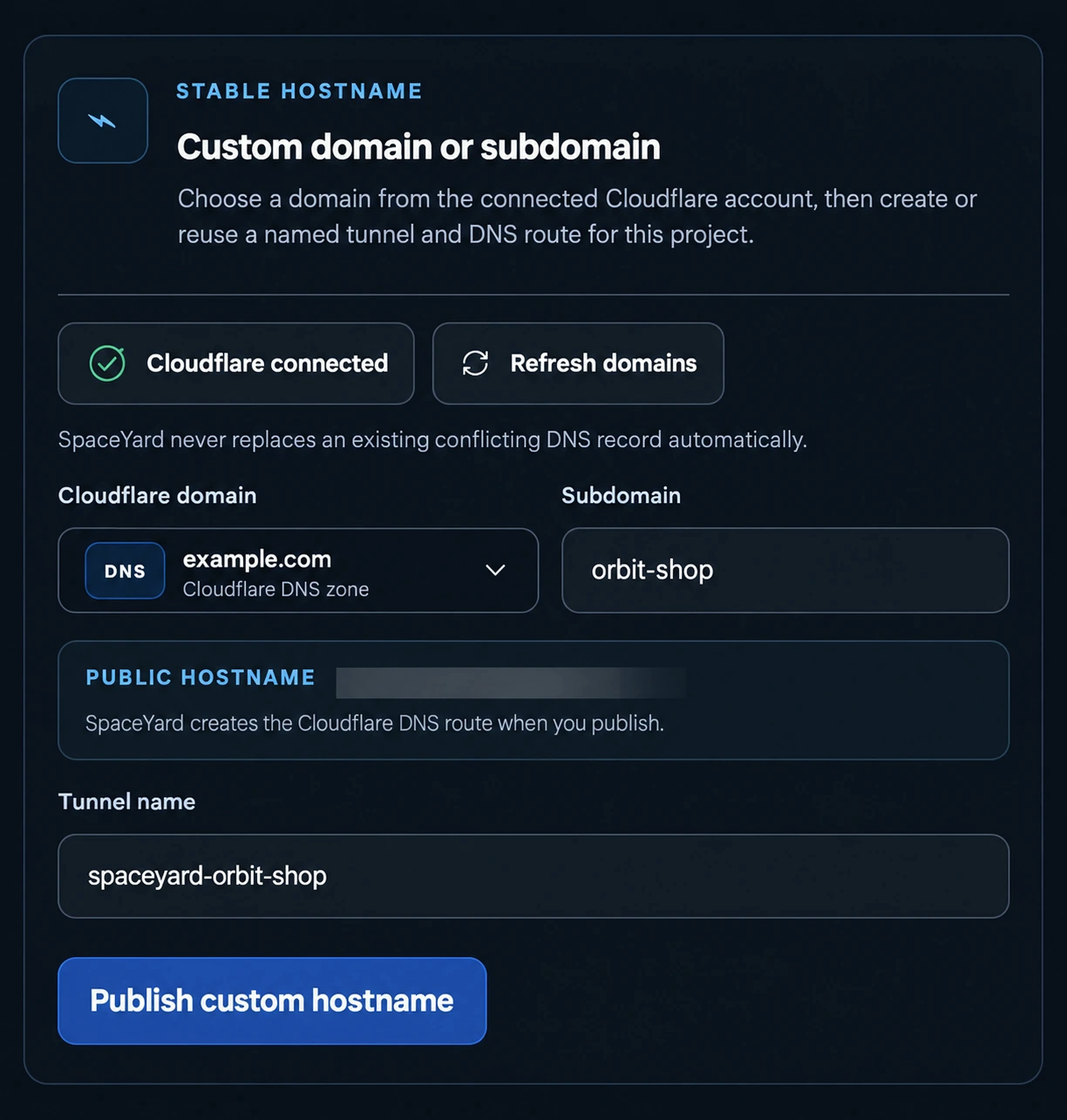
- When the status shows the preview is live, copy the generated
https://...trycloudflare.comaddress. - Open the address in a separate browser or share it with someone you trust.
The link is generated by Cloudflare, so it can change when you stop and start Quick share again. The random link is not a password or access control.
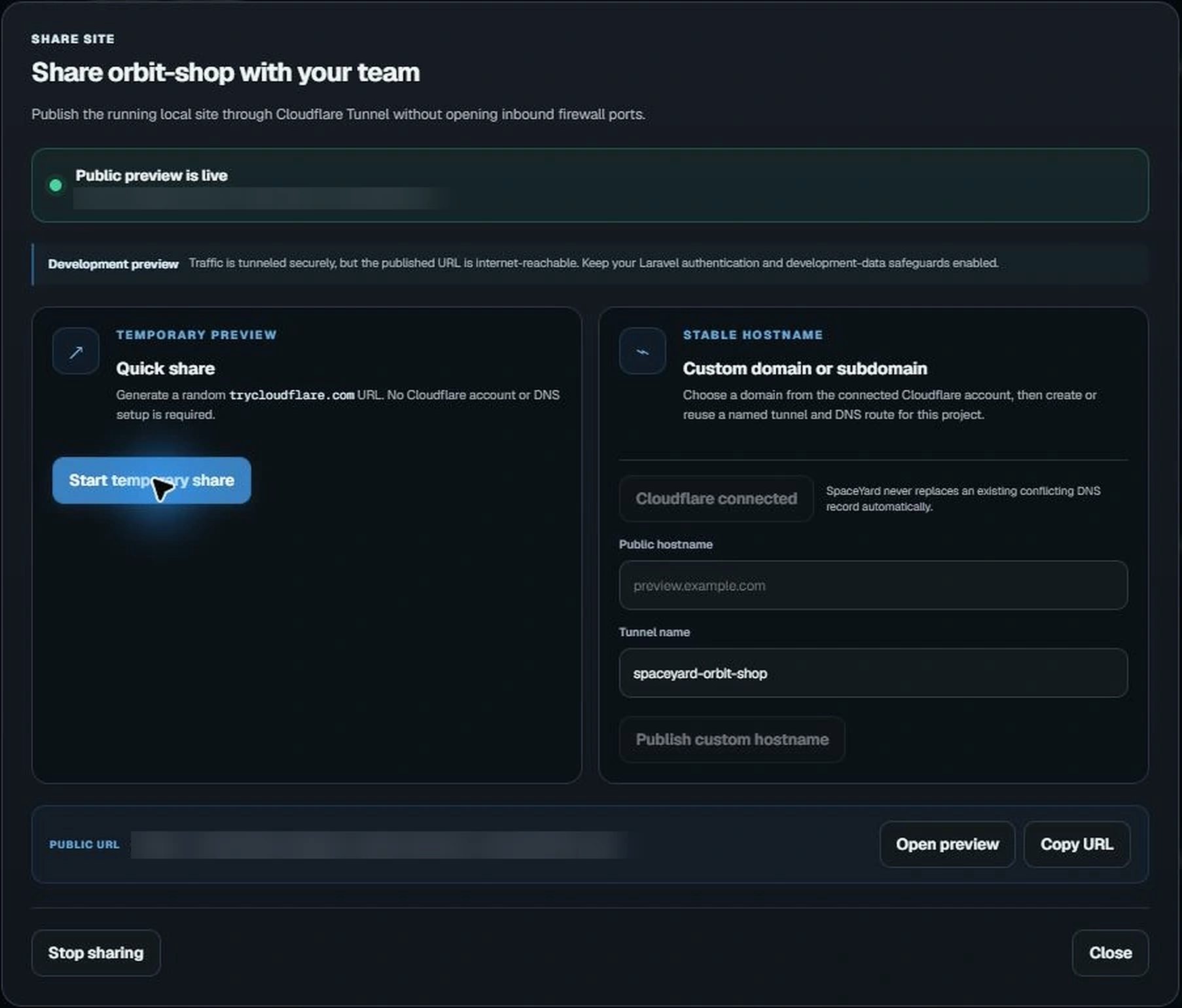
Option 2: Custom domain or subdomain
Choose this when you want a consistent public hostname, such as preview.example.com.
- In Share site, select Connect Cloudflare account and finish the Cloudflare authorization flow.
- Choose an available Cloudflare domain (or enter an authorized hostname if the domain picker is unavailable).
- Enter a subdomain and a recognizable tunnel name.
- Select Publish custom hostname.
- Wait for Cloudflare DNS and HTTPS to become ready, then test the address in a browser.
SpaceYard creates or reuses a named tunnel and attempts to register its DNS route. It does not silently replace an existing conflicting DNS record. DNS propagation may take time after the tunnel connects.
Note: Sharing with Cloudflare Tunnel is different from using a local
.testdomain. Your colleagues open the public Cloudflare address, not the private.testaddress on your computer.
Stop sharing and clean up
- Return to the project's Share site dialog.
- Select Stop sharing to stop the Cloudflare Tunnel and SpaceYard's local sharing proxy.
- If you used a custom hostname, check the site's Cloudflare DNS management controls for any tracked route you no longer need. A stopped tunnel does not automatically mean its DNS record was removed.
- Delete only the exact route you intend to remove. SpaceYard avoids deleting records whose ownership it cannot verify; use the Cloudflare dashboard if a record needs manual management.
Stopping sharing does not remove your Laravel project or its local site registration.
Troubleshooting
Share site is unavailable: Check that the project backend is running. If cloudflared is missing, install it from the Share Site prompt.
The link fails or never becomes ready: Confirm the Laravel site responds locally, verify frontend assets are available, and inspect Share log for the Cloudflare Tunnel and local proxy messages. Retry after fixing the underlying issue.
The custom hostname does not open immediately: DNS or certificate setup may still be propagating. Verify the selected Cloudflare zone and that no conflicting DNS record exists.
The public page displays private information: Stop sharing immediately, remove sensitive data from the development site, and review Laravel's authentication and logging configuration before publishing again.
For project startup and local routing issues, see Projects & Sites and Local domains & HTTPS. For general failures, see Troubleshooting.