
Database Studio
Open connections, browse tables and run SQL safely.
Database Studio lets you open a database connection, browse tables and inspect data without leaving SpaceYard.
Connect to a database
Open Database Studio and select a saved connection. A Laravel project's .env can provide connection details when supported. Confirm the selected server and database name before continuing.
Find and open tables
The left sidebar lists tables in the selected database. Use Search tables to narrow the list. When there are many tables, compact pagination shows 15 tables per page. Select a table to inspect it.
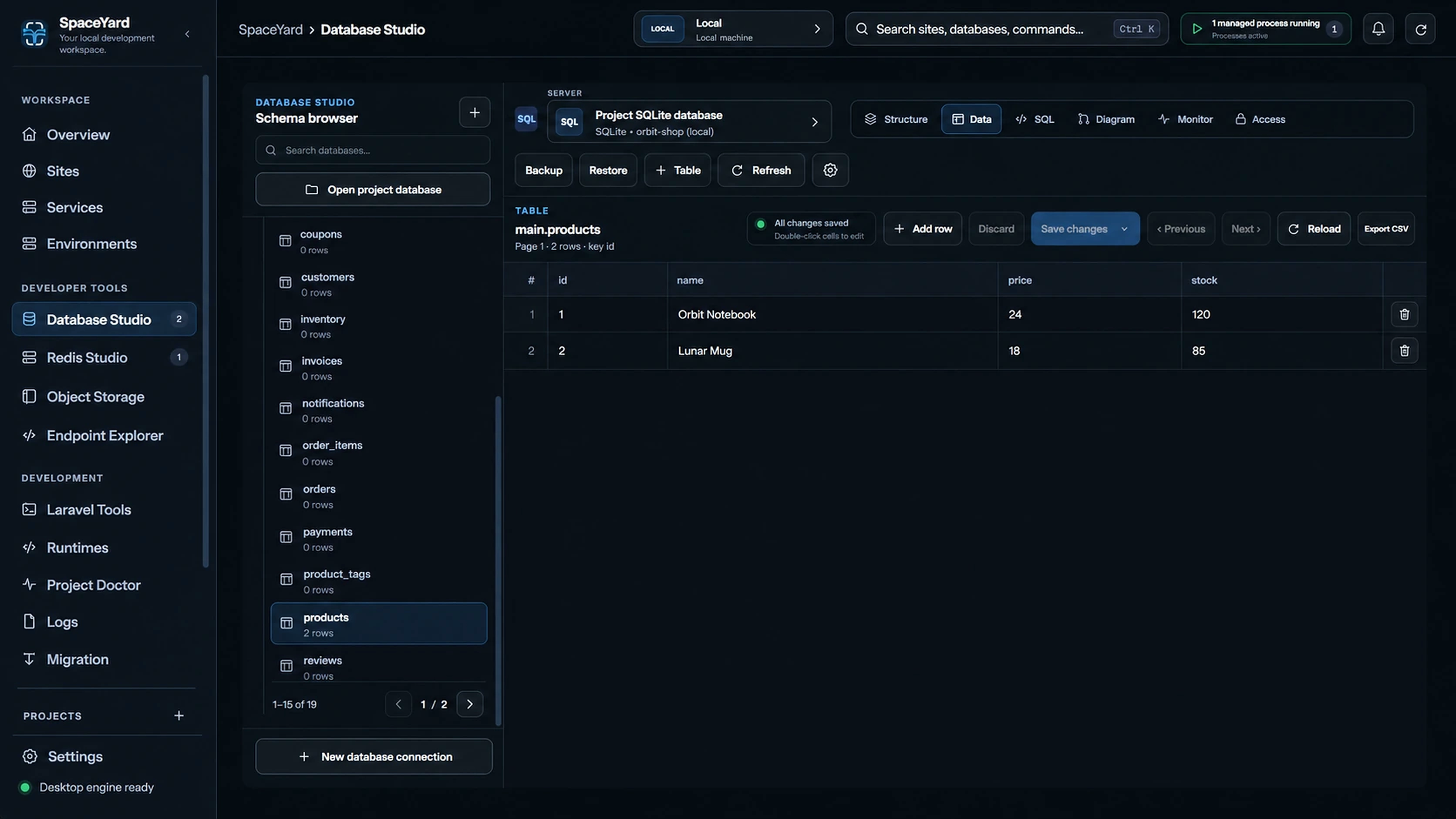
Read data or run a query
SpaceYard includes an SQL editor and result view. Start with a read-only query, such as:
SELECT * FROM users LIMIT 5;
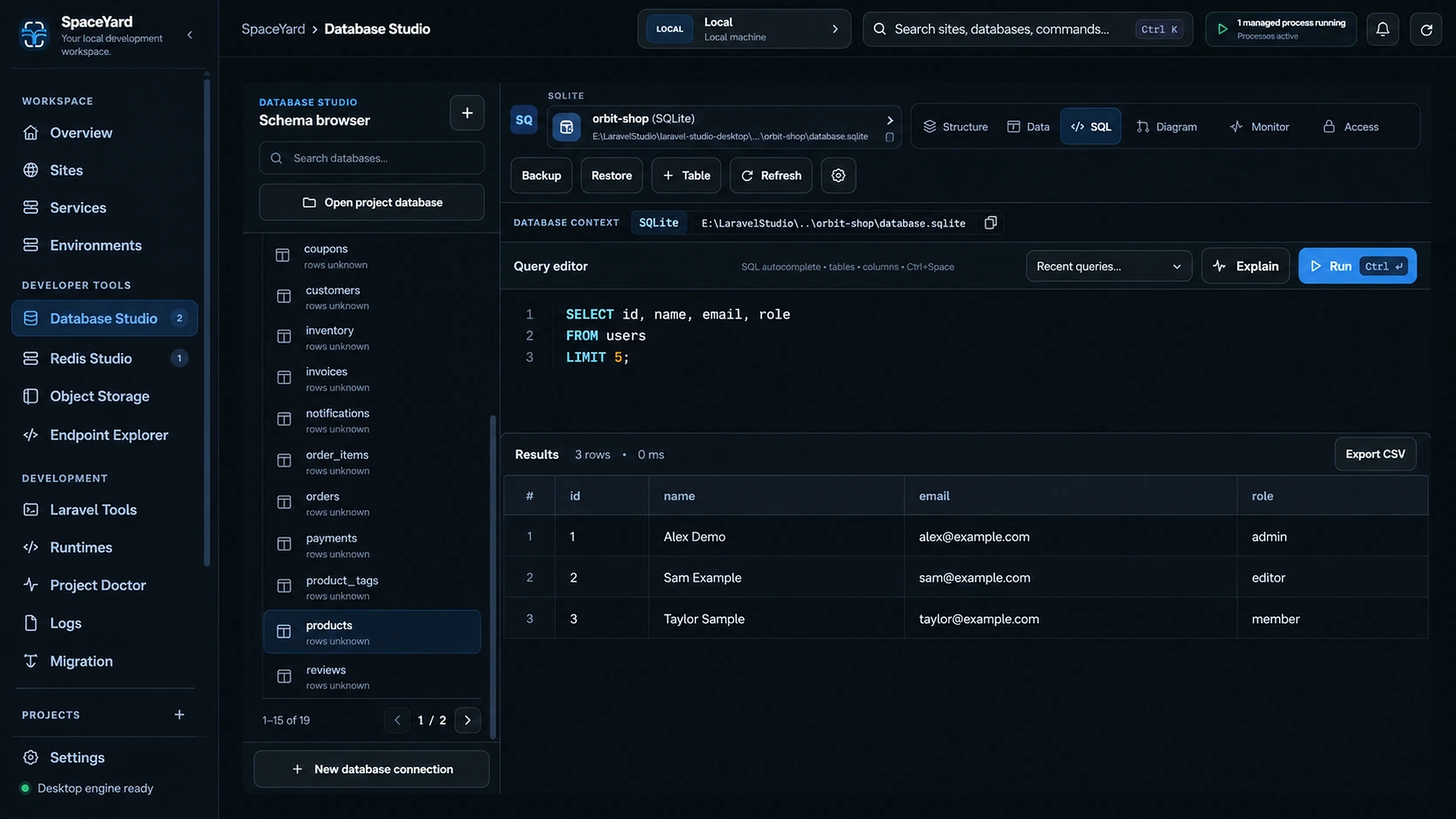
Safety: SQL can change or delete data. Before running
UPDATE,DELETE,DROPor migrations, verify the connection and make a backup. Be especially careful with remote or production databases.
Other common tasks
Use schema inspection and database backups where the selected connection supports them. Database Studio does not create a database server merely by opening a connection.
If a connection fails, confirm that its service is running and the host, port, database name and credentials are correct.