
Remote environments
Connect to a server over SSH and inspect your deployed Laravel application.
Use Environments in the SpaceYard sidebar to connect a local Laravel project to its remote server. You can inspect a Production, Staging, or QA environment over SSH without registering the deployed application as another local project.
If you want to check the PHP and Node.js detected on your own computer, use Services → Check Environment instead. See Local services.
What you need before connecting
- A Laravel project registered in SpaceYard. This is the local project that owns the remote environment.
- SSH access to a server you are authorized to manage.
- The server's hostname or IP address, SSH port (usually
22), and SSH username. - An SSH authentication method: agent/default keys, a private key, a password, or an SSH config alias.
- The directory of the Laravel application on the server, if one is already deployed.
SpaceYard uses the operating system's OpenSSH client. For everyday use, an SSH key with an agent is usually easier to maintain than a password. Verify your server's SSH host key before you trust a new connection.
Step 1 — Open Environments
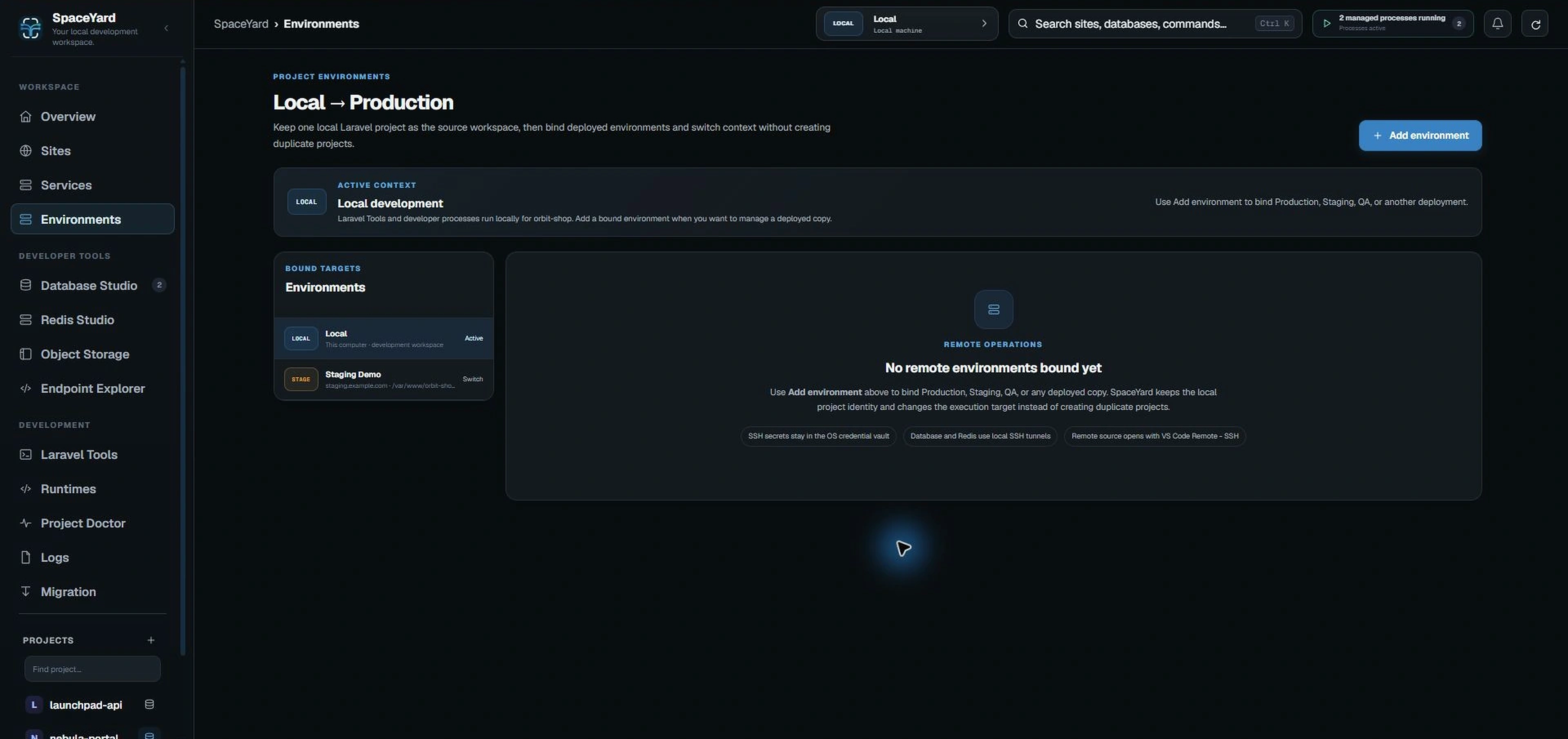
- In the sidebar, open Environments.
- Select the local Laravel project you want to work with.
- Click Add environment in the top-right area.
The page shows your Local workspace and any remote environments already bound to that project. You can add more than one, such as Production and Staging.
Step 2 — Enter the server connection details
In Bind a deployed environment, fill in the fields:
- Local Laravel project: Confirm the project that owns this server environment.
- Environment name and Badge: For example,
ProductionandPROD. The badge helps you recognize when remote context is active. - Application URL: Optional, but useful for opening the deployed website from SpaceYard.
- SSH authentication: Choose one of the supported methods:
- SSH agent / default keys: Uses your normal OpenSSH keys and agent.
- Private key file: Select the correct private key. Enter its passphrase if required.
- Password: Enter the server user's SSH password.
- SSH config host alias: Use an existing alias from your SSH configuration for custom ports, jumps, or other connection rules.
- Server host, SSH port, and SSH user: Fill these in unless using an SSH config alias.
- Laravel path / future deployment path: Enter the application directory on the server (for example,
/var/www/my-app/current). If this is an existing deployment, use its real path. - PHP executable override: Leave blank to use the server default, unless you need a specific PHP binary.
Then choose Bind environment. SpaceYard tests the SSH connection before saving for most authentication methods. An SSH config alias is handled differently, so you may need to use Test SSH after saving.
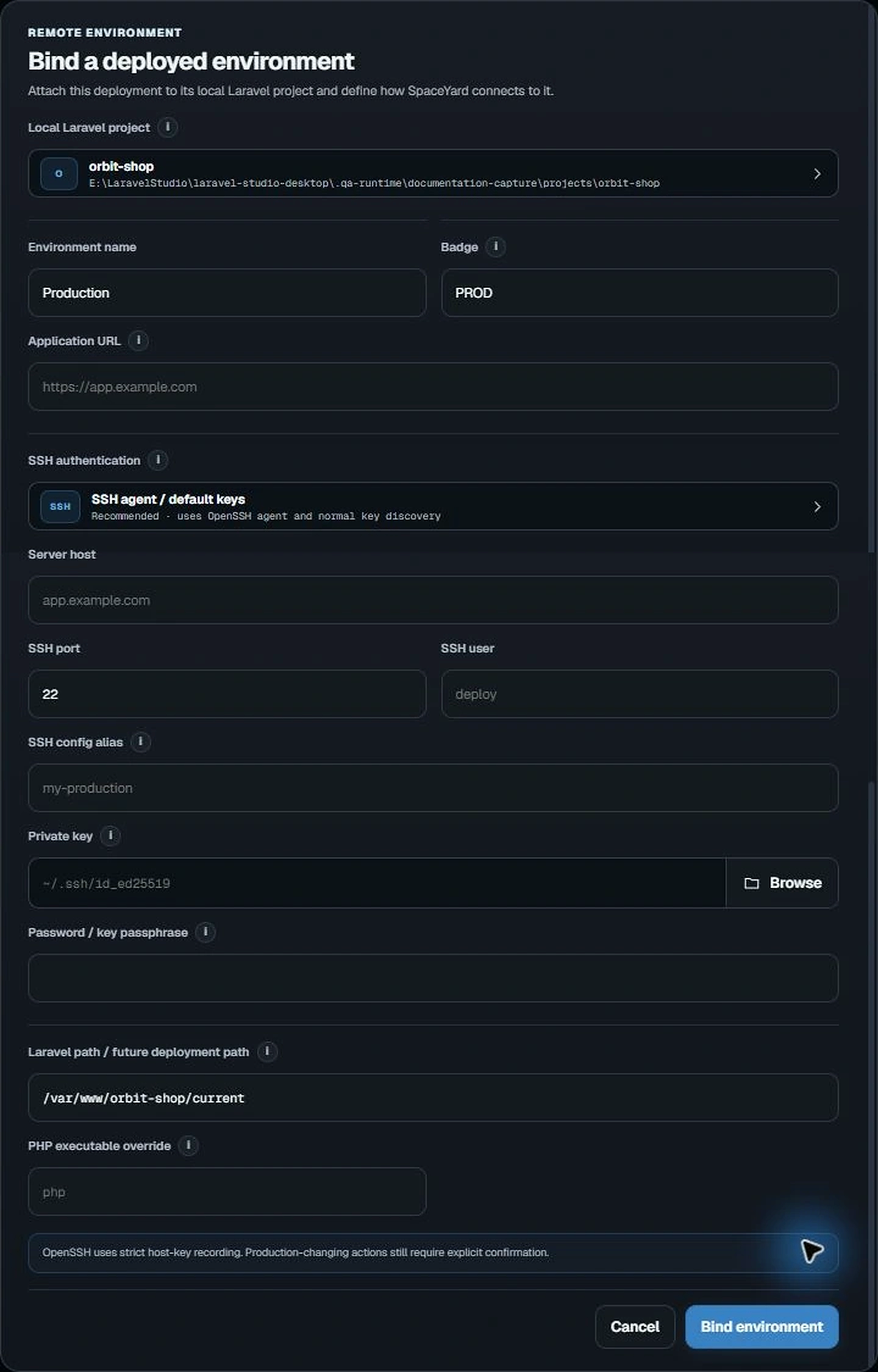
Security: Confirm the host, user, and remote directory before you save. Passwords and key passphrases are kept in the operating system's credential vault; never paste them into screenshots or documentation.
Step 3 — Activate and inspect the remote environment
After binding a new environment, SpaceYard activates it for the selected project. You can switch between Local and the saved remote targets from the Environments list.
The remote overview can show:
- Server health: Operating system, uptime, memory, and disk information when available.
- Laravel details: Detected Laravel version and Git branch or revision.
- Runtimes: Remote PHP, Node.js, Composer, and Git information.
- Detected services: Supported server services when they can be discovered.
- Remote tools: Available links for Laravel logs, Database Studio, and Redis Studio.
Choose Refresh server data to request a new inspection, or Test SSH to check the connection. SpaceYard may show cached server data if a refresh fails; check its update status before relying on that information.
After you save an environment, SpaceYard opens its bound remote context inside the same project workspace. Use the environment switcher to confirm when Local or the remote target is active before you run commands or inspect data.
Important: Selecting a remote environment changes remote inspection, logs, and supported remote data-tool context. Laravel Tools and local development processes still run on your computer. Connecting a remote environment does not deploy code or change the running website by itself.
Edit, switch, or remove a connection
- Use Edit to update a saved server connection. The linked local Laravel project cannot be changed after the environment is created.
- Select Local to return to your normal development context. Remote database and Redis tunnels associated with the previous active target are closed when the context changes.
- Use Remove only when you want to delete the saved environment binding. SpaceYard asks for confirmation and removes the associated stored SSH secret and managed database tunnel; it does not delete the local Laravel project.
If you manage a production server, verify the active context at the top of the page before running any remote command or service action.
Connection troubleshooting
SSH cannot connect: Check the host, SSH port, username, firewall, and chosen key or password. Confirm that the same server is reachable with your normal SSH tools.
A newly saved environment does not show server details: Select the environment, run Test SSH, then choose Refresh server data. Check any error shown on the page.
Database or Redis tools are unavailable: The service might not be detected, or the server-side endpoint may require a safe loopback route. SpaceYard uses SSH forwarding for supported remote connections and does not automatically publish public database ports.
For local PHP/Node checks and runtime bindings, use Local services and PHP & Node runtimes. For general setup problems, see Troubleshooting.