
Install on Windows
Install SpaceYard and complete first-launch checks.
This guide covers the Windows release. SpaceYard is a desktop application: you do not need to open a terminal just to navigate its interface.
Before installing
- Use a supported Windows desktop with permission to install applications.
- Keep enough free space for projects, PHP runtimes and downloaded packages.
- Have a network connection when installing runtimes or creating new Laravel applications.
- For an existing project, know where its Laravel folder lives.
Release status: The public Windows installer link is not available yet. Download only a published installer from the official Download page once it is enabled. Do not use an unverified installer from another site.
Install and open SpaceYard
- Download the official Windows installer when it becomes available.
- Run it and follow the Windows installer prompts.
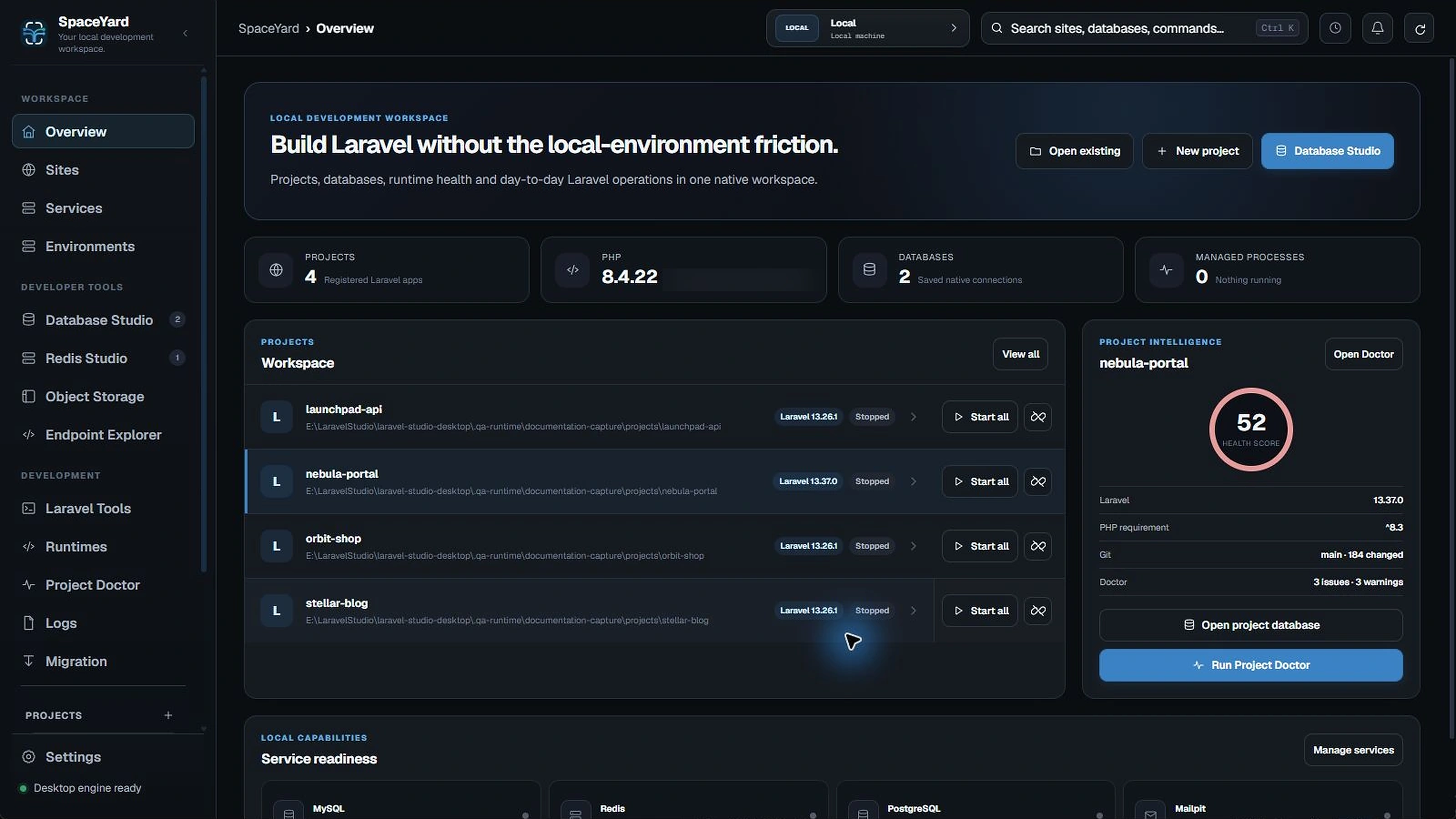
- Launch SpaceYard.
- Open Settings if you want to choose a preferred directory for new projects.
- Use Sites to register a project or create a new one.
About Windows permission prompts
Some local-domain operations must change the Windows hosts file or establish HTTPS trust. Windows may ask for administrator approval for those specific operations. Normal page navigation and project selection should not require repeated permissions.
Only approve a permission prompt when you intentionally started an operation you recognize. If prompts appear repeatedly, see Troubleshooting.
What happens next
Go to Getting started, follow Create a Laravel project for a fresh application, or use Migrate to SpaceYard when you already have Laravel projects in another local stack. Optional frontend packages can be installed later using Bootstrap Project.