
Create a Laravel project
Choose a starter kit, testing framework and database.
Use New project to create a Laravel application from an official starter kit. SpaceYard runs the setup commands for you, without opening an interactive terminal.
1. Choose a folder and name
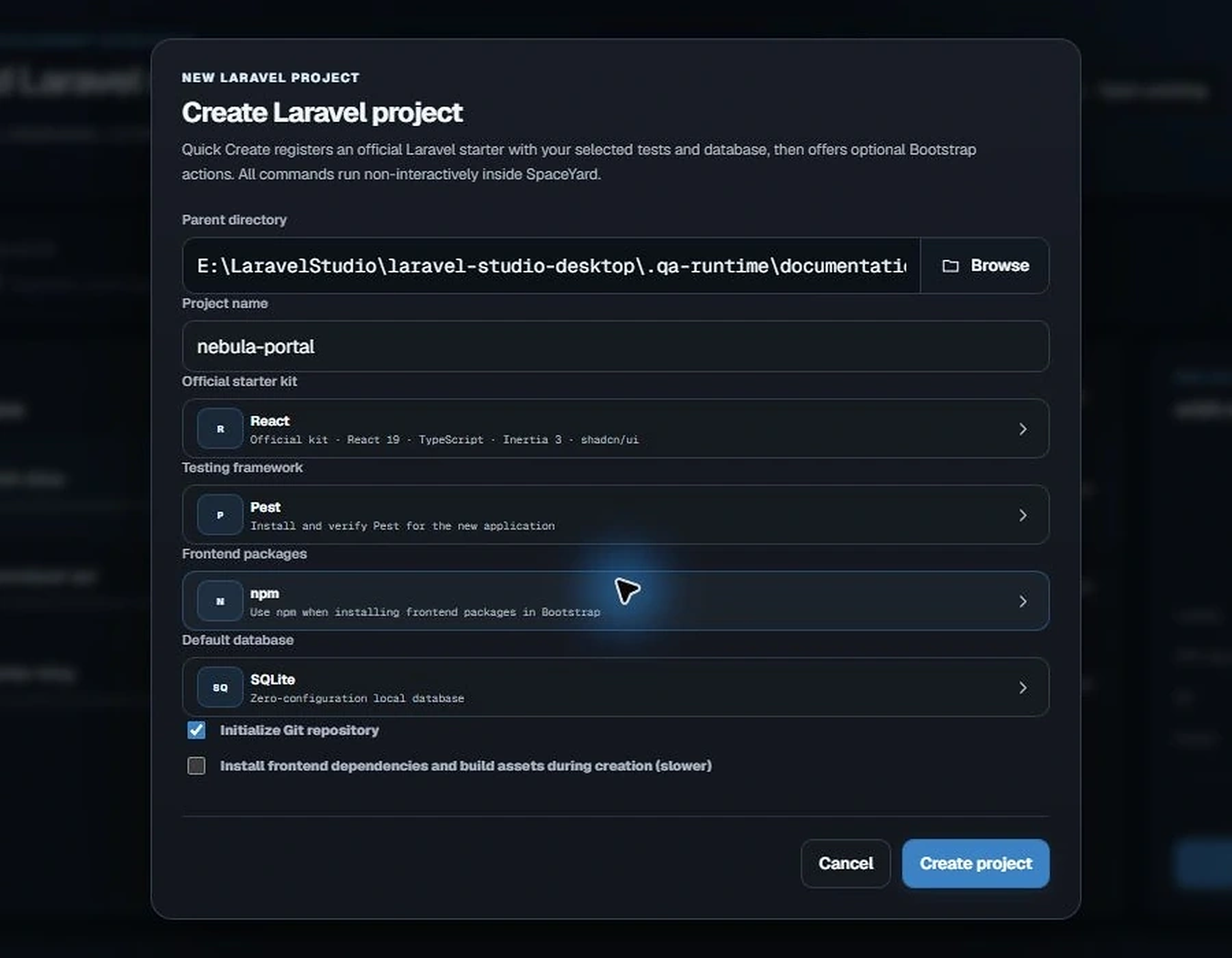
Open Sites and select New project. Choose the parent directory, then enter a short name such as my-website.
The new folder must not already contain a different project. Avoid special characters that would make Windows paths difficult to read.
2. Choose your application options
You can select:
- Starter kit: Blade, React, Vue, Svelte or Livewire.
- Testing framework: Pest, PHPUnit or the starter's default.
- Frontend package manager: npm, pnpm, Yarn or Bun, depending on what is available.
- Database: SQLite for a simple local project, or another supported connection.
- Git: Optionally initialize a repository.
Important: Choosing MySQL, MariaDB or PostgreSQL configures Laravel's connection settings; it does not always create the database server or database for you. Make sure your chosen service is ready.
3. Create the project
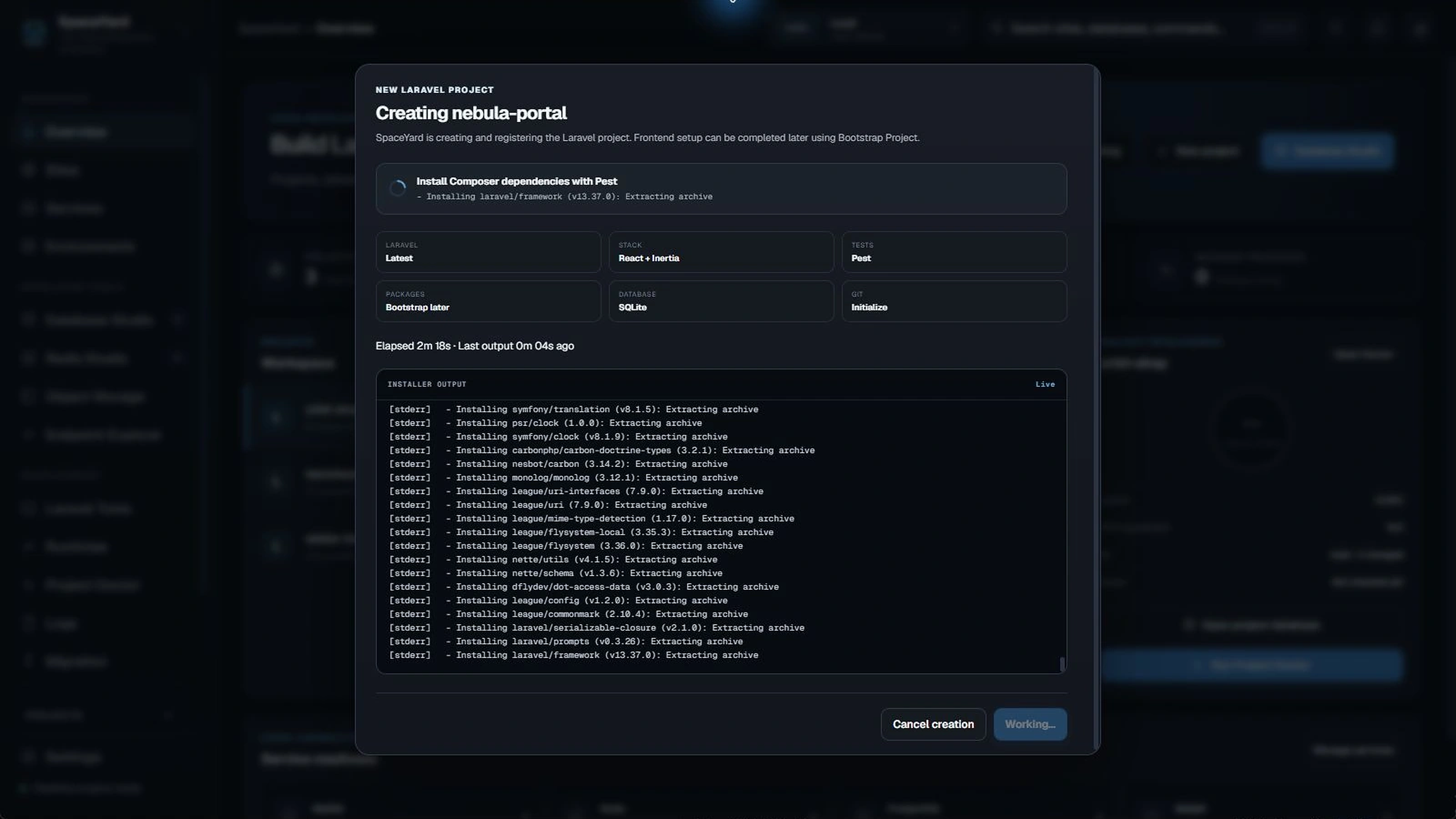
Select Create project. SpaceYard runs Composer, prepares Laravel and the selected test framework, then registers the project. Progress messages appear in the creation window.
With Quick Create, frontend dependency installation and production asset builds are left for the Bootstrap step. If you choose the slower option to install frontend packages during creation, allow time for network downloads.
4. Finish frontend setup when needed
For React, Vue or Svelte projects, use Bootstrap Project to install frontend packages. To preview the frontend, either run its Vite development server or build assets first.
A successful project creation does not mean its external database or frontend tooling is already running. Review these separately before opening the site.
If project creation stops
Read the last step in the progress output. If Laravel files were created but frontend setup failed, check whether the project is already listed in Sites before running the entire creation process again. See Troubleshooting.