
Projects & Sites
Register, start, stop and manage local Laravel sites.
The Sites page is your starting point for opening, starting and managing Laravel projects. It keeps your registered projects in one place without moving their source code.
Add an existing project
- Open Sites.
- Select Open existing or Add project.
- Choose the Laravel directory containing
artisanandcomposer.json. - Confirm that the project appears in the list.
Use the search box to find a project by name or path. The list remains scrollable so running projects are not hidden behind pagination.
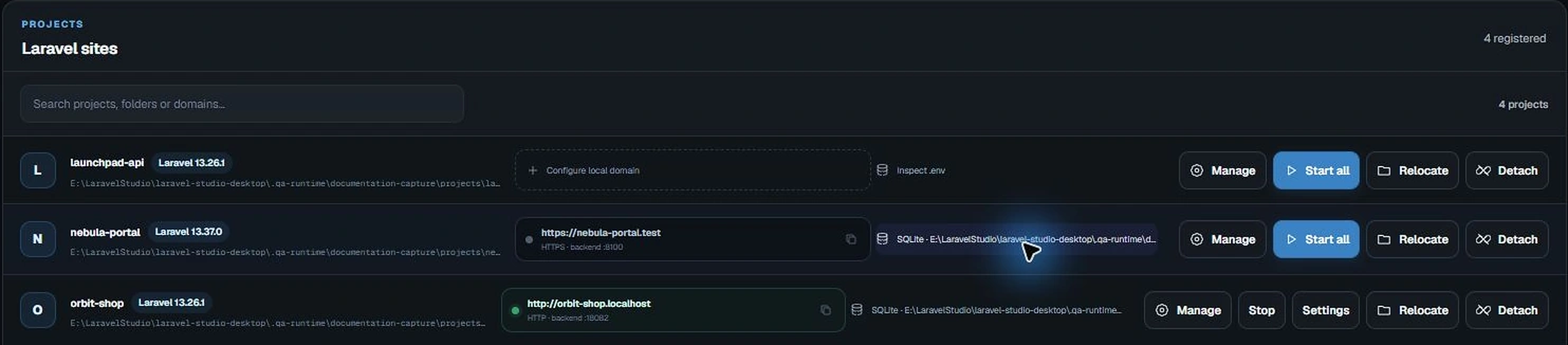
Start and stop a project
Select the project's Start action. SpaceYard starts the Laravel backend and can expose its configured local domain. Use Stop to stop managed processes when you are finished.
A running backend and a working .test address are two separate checks. If the backend starts but the address does not open, go to Local domains & HTTPS.
Share a site with someone else
To show a running Laravel site to a colleague outside your computer, use Manage → Share site. SpaceYard can create a temporary Cloudflare Tunnel link or publish a custom hostname. See Share a site with Cloudflare Tunnel for safe step-by-step instructions.
Manage or remove a project
- Manage: opens the project workspace and related actions.
- Relocate: updates SpaceYard's saved folder after you move it yourself.
- Detach: removes the SpaceYard registration, not the Laravel source folder.
Important: Detach is not the same as deleting a project from disk. Always check the action's confirmation message before proceeding.
Recommended habit
Keep each project in its own folder and make regular Git commits. This makes environment changes and recovery easier to understand.