
Local domains & HTTPS
Understand .test domains, routing and trust.
SpaceYard can give a Laravel project a local domain such as my-website.test and route requests to its development server.
The two parts of a local site
A local site has a Laravel backend port and a domain route handled by the shared Caddy web router. Starting the backend alone does not always mean the domain is ready.
Set up a local domain
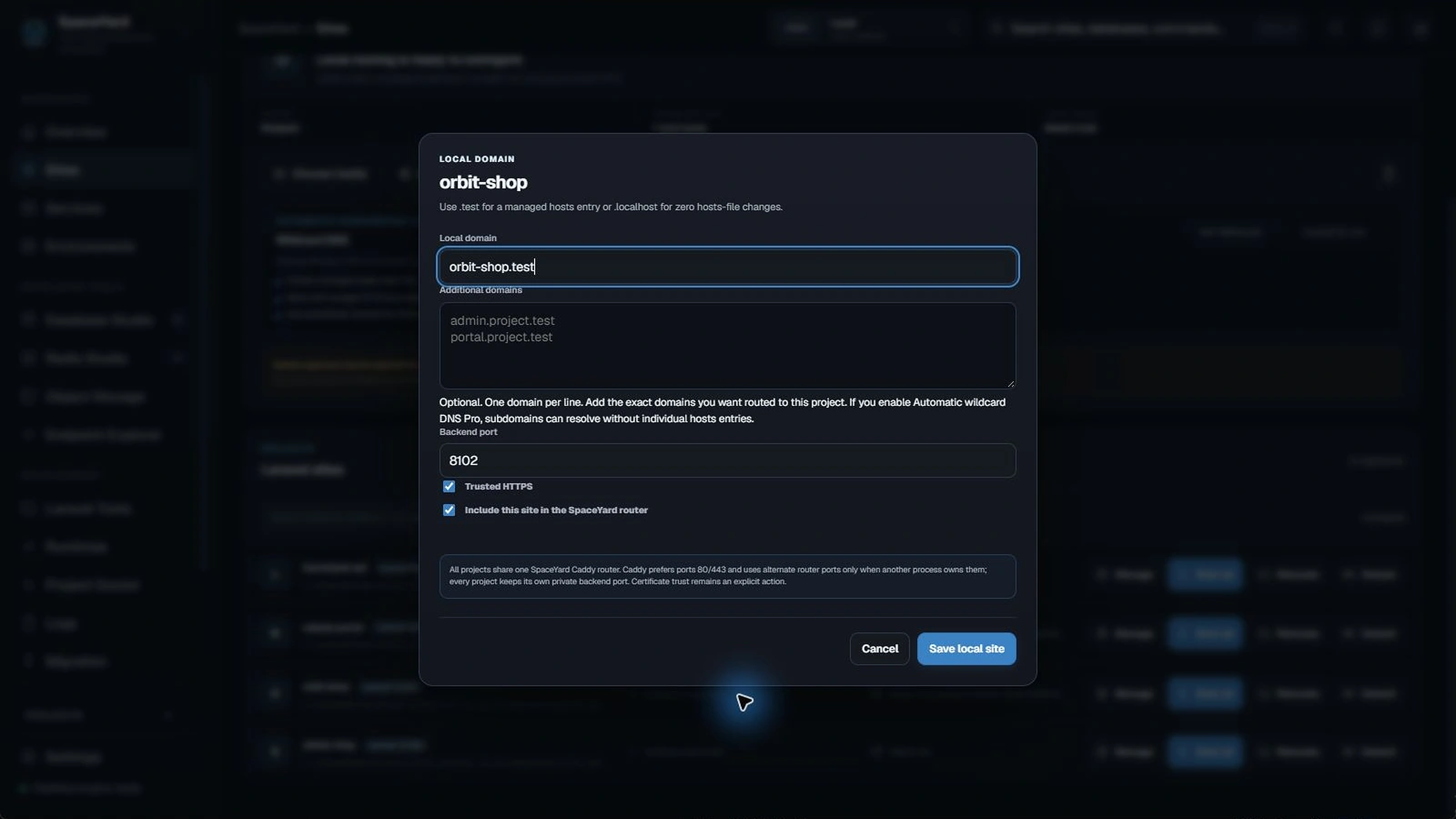
- In Sites, choose Manage beside the project, then Edit domain & port. For a project without a route, you can also use Configure local domain in the Sites list.
- Check Local domain and Backend port. Use Trusted HTTPS if you want HTTPS for this site.
- Select Include this site in the SpaceYard router.
- Select Save local site.
- For
.testnames, select Apply .test routing in the Local Router panel and approve the Windows permission prompt for the operation you requested. - Start the site and open the resulting address.
HTTPS and Windows permissions
SpaceYard uses Caddy for its managed local routing. .test domains may require a Windows hosts-file update; trusting a local HTTPS certificate is a separate explicit action.
If Windows asks for administrator permission, confirm that you just requested hosts-file routing or certificate trust. Avoid repeatedly clicking Start while an operation is still running.
When the backend runs but the domain fails
Check the site's backend port, Caddy/router status, and whether a different program is using ports 80 or 443. Alternate router ports may be used when standard ports are occupied. You can also open the router log from the routing controls.
Safety: Do not manually delete unrelated lines from the Windows hosts file or remove certificates you do not recognize. Prefer SpaceYard's own managed controls.
For common errors, open Troubleshooting.
Wildcard DNS
Wildcard DNS lets one registered local project answer at many subdomains without adding a Windows hosts-file entry for each name. For example, register a demo Laravel project as orbit-shop.test, then use admin.orbit-shop.test and customer.orbit-shop.test to test an admin area or a tenant-based application.
Regular local .test routing maps the exact names you configure. A hosts-file entry for orbit-shop.test does not also resolve admin.orbit-shop.test. Wildcard DNS resolves the registered name and one extra subdomain level to your own computer, at 127.0.0.1.
Where to find it
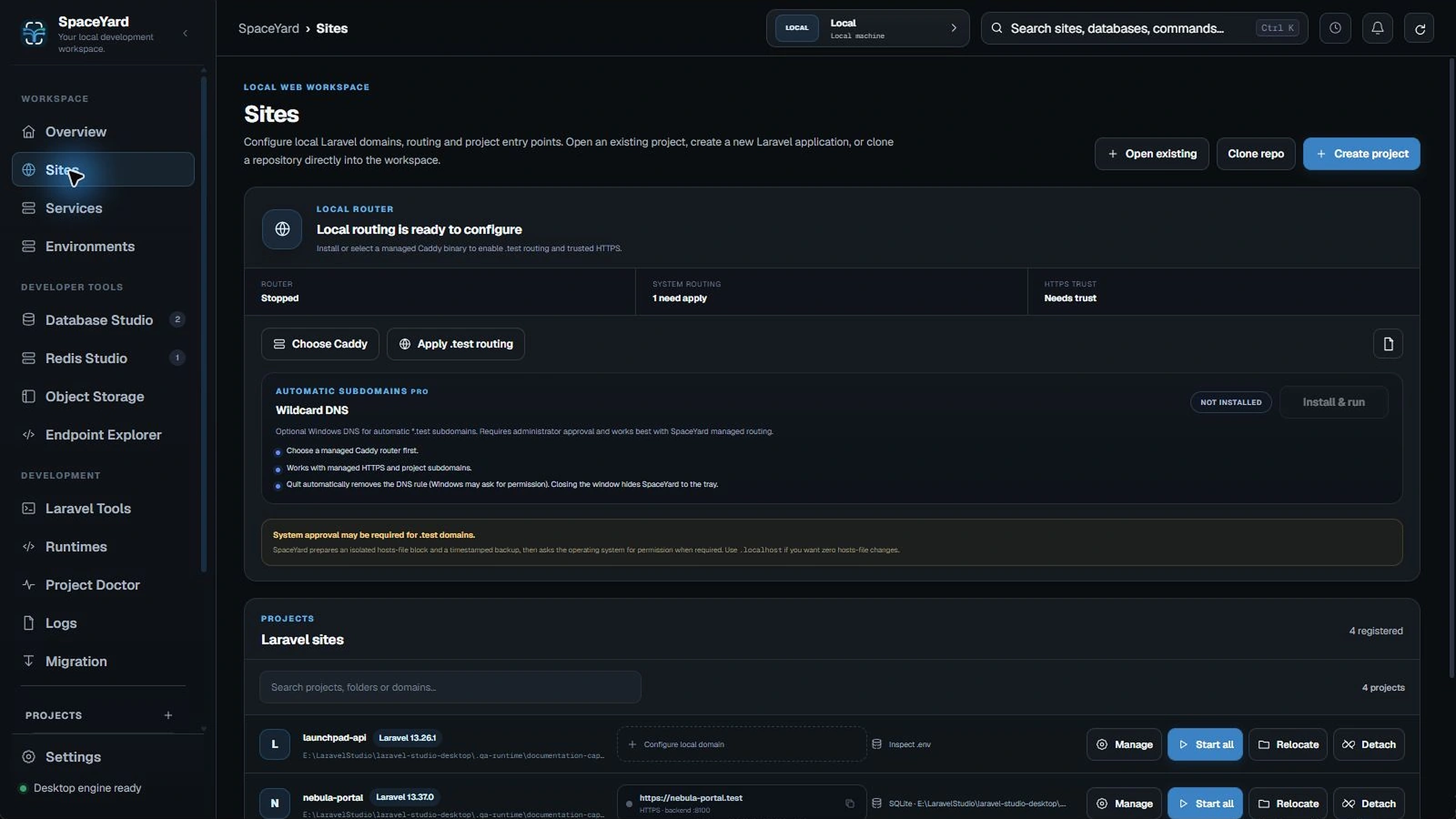
Open SpaceYard → Sites → Local Router → Wildcard DNS. Sites is in the left sidebar. Local Router is the panel near the top of that page; the Wildcard DNS card is below its router controls and carries the automatic subdomain controls for .test projects.
The routing screenshot above already shows this card in its Not installed state. Its Install & run button is unavailable until the router prerequisites are met; it does not show DNS running.
Requirements and limitations
- Use the Windows desktop application. Wildcard DNS is included in SpaceYard and does not require a separate paid plan.
- Select a managed Caddy installation and start the local router. Caddy receives browser requests and routes them to the project's backend; DNS alone cannot serve a Laravel page. SpaceYard restarts the router to add wildcard routes when you enable DNS.
- Configure at least one enabled
.testsite in the local router. Merely opening a Laravel folder is not enough. Start that project's backend before testing its page. - Approve the Windows administrator prompt when installing or removing the DNS policy. SpaceYard uses a Windows Name Resolution Policy Table (NRPT) rule named SpaceYard Wildcard Local DNS to send
.testlookups to its local DNS listener. This is separate from hosts-file routing and HTTPS certificate trust. - The listener needs UDP port 53 on
127.0.0.1. Another local DNS server can occupy it. No separate third-party DNS program or public DNS record is required. - The rule affects every
.testlookup on this computer while active. Unregistered names receive a name-not-found response rather than being forwarded to another DNS provider. Other local development tools using.testcan therefore be affected. SpaceYard refuses installation if another NRPT rule already owns the.testnamespace. - VPNs, organization-managed DNS policies, and browsers using their own secure DNS resolver may interfere. The resolver returns IPv4 loopback addresses; it does not provide IPv6 addresses, recursive DNS forwarding, or wildcard resolution for other suffixes such as
.localhostor.com.
Enable Wildcard DNS
- Select Sites in the left sidebar.
- Find Local Router near the top. Use Choose Caddy if no managed router is selected. Configure an enabled site such as
orbit-shop.test, start the router with Start router, and start the demo project. The Router status should show Running. - Find the Wildcard DNS card beneath the router actions. It shows Not installed before setup.
- Select Install & run. In Install and run local wildcard DNS?, read the explanation and select Install & run again. There is no hostname field or separate DNS settings dialog in this card. If a previous installation remains, the card can instead show Installed · stopped with Start DNS.
- Approve the Windows administrator permission prompt for the operation you just requested. Wait for setup to finish.
- Confirm the card shows Running and Remove DNS, and that the Wildcard local DNS started notification appears. If an error appears, use the troubleshooting steps below; do not assume the policy was installed.
- Open
https://admin.orbit-shop.testin a browser if this site's HTTPS option is enabled and local HTTPS is trusted. Usehttp://admin.orbit-shop.testfor an HTTP site. If Local Router reports an alternate port, include it, for examplehttps://admin.orbit-shop.test:8443when HTTPS is on port 8443.
The hostname must use your project's actual registered domain. These examples use a demo name; you do not need to rename an existing project or change its configuration to follow the guide.
Supported subdomains
For an enabled site registered as orbit-shop.test:
orbit-shop.testresolves as the registered base name.admin.orbit-shop.test,customer.orbit-shop.test, andtenant-1.orbit-shop.testresolve to the same local project.team.admin.orbit-shop.testis not supported beneath that base: it adds two levels. Ifadmin.orbit-shop.testis separately registered as an enabled local hostname, one level below that registered name can be supported.other-shop.testdoes not resolve through SpaceYard unless it is also registered and enabled.admin.orbit-shop.comis outside the.testpolicy.
The same rule applies to registered additional .test domains. A separately registered exact hostname has its own Caddy route and takes precedence over a wildcard route.
There are three separate parts to a working subdomain:
- DNS resolution turns
admin.orbit-shop.testinto127.0.0.1. - Local routing lets Caddy send that hostname to the registered project's backend, using the site's HTTP or HTTPS setting. The wildcard route preserves the requested hostname for Laravel.
- Laravel application handling decides what that hostname means. Configure the application's subdomain routes or tenancy package if it should show different content per subdomain. SpaceYard does not create tenants, change Laravel routes, or configure session cookies for you. A Laravel 404 after the request reaches the app can be an application routing issue even when DNS works.
Disable Wildcard DNS and check cleanup
- Return to Sites → Local Router → Wildcard DNS.
- Select Remove DNS and approve the Windows administrator prompt for removal.
- Wait for Wildcard DNS removed. Confirm the card returns to Not installed, with Install & run available when prerequisites are met.
- For an additional read-only check, open PowerShell and run:
Get-DnsClientNrptRule | Where-Object DisplayName -eq 'SpaceYard Wildcard Local DNS'
After successful removal, this command should return no SpaceYard rule. Test the ordinary registered site again; exact hosts-file entries are managed separately and are not removed by Remove DNS. A previously opened subdomain can briefly keep working because of cached DNS results.
Removal deletes SpaceYard's matching .test NRPT rule and installation marker, then stops its DNS listener. If Caddy is running, SpaceYard restarts it without wildcard routes. It does not restore a saved copy of all Windows DNS settings, edit unrelated DNS policies, or change your network adapter's DNS server configuration. If removal is denied or the rule has unexpected values, it reports an error and keeps the listener running rather than leaving Windows pointed at a stopped resolver. Retry removal with administrator approval; ask your administrator to inspect an unexpected policy instead of deleting unrelated rules.
Using Quit attempts to remove the policy and can request administrator permission. Closing the window hides SpaceYard to the tray and leaves the application running. Quit can be prevented when cleanup fails. After a crash, SpaceYard attempts to remove a stale policy on startup when its installation marker exists; that recovery can also fail or require permission. Verify cleanup instead of assuming it always succeeds. Enable the feature again when needed after a successful quit and restart.
Troubleshooting Wildcard DNS
- Install & run is disabled: Choose a managed Caddy router, configure an enabled
.testsite, and start the router. Read the helper text inside the card. If the action is unavailable, re-check the router, enabled.testsites, and the helper text inside the card. - Windows administrator approval is denied: Setup reports Local DNS could not start. Retry Install & run when you can approve the operation or contact your administrator. If policy installation fails, the code stops the listener and attempts to restore Caddy without wildcard routes; inspect Router status if that rollback also fails.
- DNS cannot start: Check the reported error. Another service may already bind
127.0.0.1:53, or an NRPT policy may already own.test. Identify the owning software or ask your administrator to inspect it before changing anything. - A subdomain does not resolve: Check Running, the spelling, the one-level limit, and whether the base hostname is registered and enabled. To test the listener directly, run the read-only command below. An A record of
127.0.0.1confirms the listener's response; it does not prove that the browser uses the Windows DNS policy.
Resolve-DnsName admin.orbit-shop.test -Server 127.0.0.1 -Type A -DnsOnly
- The direct DNS test works but the browser fails: Check the browser's secure DNS configuration and any VPN or organization DNS policy. Use your organization's approved settings and ask its administrator about conflicts. The
.testNRPT rule is intended for Windows resolver clients; a direct query to another DNS server will not test it. Cached failures may need time to expire before retrying. - The local Caddy router is stopped: Select Start router in Local Router, check port conflicts and the displayed HTTP/HTTPS ports, and retry the correct address. The Wildcard DNS Running badge describes the DNS listener, not the health of Caddy or Laravel.
- The project is not registered: Configure its local domain in Sites, enable it for routing, and start the backend. DNS only answers names beneath enabled registered
.testhosts. Recheck Local Router after saving. - The browser reports an HTTPS or certificate error: Confirm the site's HTTPS option, use the displayed HTTPS port, and use Trust HTTPS in Local Router for Caddy's local certificate authority. Approve trust only for the local operation you intentionally requested. DNS does not install certificate trust. Check the hostname and Caddy log instead of bypassing a browser security warning.
- The browser reaches Laravel but shows an error or the wrong page: Check the project's backend, Laravel subdomain routes, tenancy configuration, and logs. Resolving a hostname does not automatically create an application route or a tenant.
- Remove DNS fails or
.testbreaks after a crash: Reopen SpaceYard, review any recovery error, then retry Remove DNS with administrator permission. Use the read-only NRPT check above to confirm cleanup. If the policy values have changed or recovery cannot identify the rule, ask a Windows administrator to inspect that specific rule.
Wildcard DNS versus Cloudflare Tunnel
Wildcard DNS is for local development. Cloudflare Tunnel is for sharing a development site publicly. Wildcard DNS sends supported names to your own computer; enabling it does not make the site accessible over the internet, publish a DNS record, or start a tunnel.
Need a public preview instead?
A .test domain is for your computer. To let another person open a running site over the internet, follow Share a site with Cloudflare Tunnel.